A Step-by-Step Guide to Getting Started with Pension App
Last Updated: 03/12/2025 17:23Signing up to Pension App is quick and straightforward. Follow our simple step-by-step guide below. Each stage will include a screenshot to help you along the way.
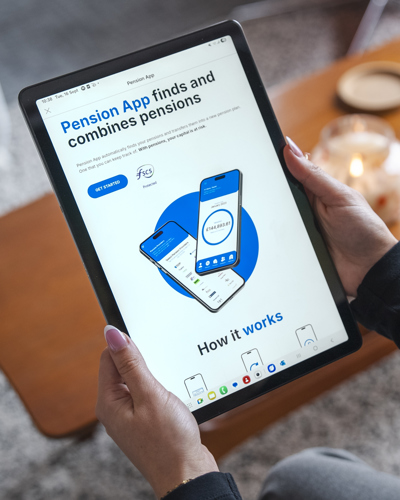
Step 1: Click Get Started at the top of the homepage.
Head to the Pension App website and click Get Started at the top of the page. This will take you to the secure online registration form where you can begin creating your Pension App account.
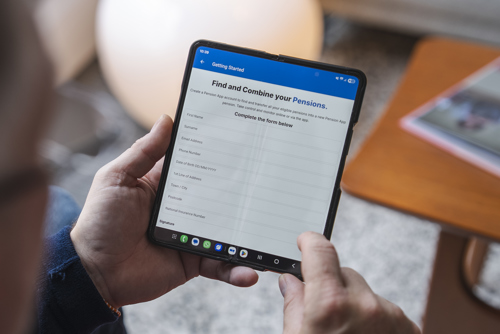
Step 2: Fill in your personal details and add your digital signature.
Enter your personal information as requested, including your full name, date of birth, and contact details. You’ll also be asked to provide a digital signature. It’s important that this signature is clear, as it will be used on letters of authority sent to your pension providers so they can release the necessary information for tracing and transferring your pensions.
Step 3: Select your investment fund.
Next, you’ll be asked to choose your investment fund. This is where your pension contributions will be invested. Pension App offers four BlackRock MyMap fund options: Ultra-Cautious, Cautious, Balanced, and Adventurous.
You can view more information about each fund, including their objectives and composition, by visiting our Fund Factsheets page.
Once you’ve selected your fund, read through the terms and conditions carefully. When you are happy to proceed, tick each box to confirm your agreement before continuing.
Step 4: Add your previous employers and pension providers.
Next, enter the names of your previous employers. Pension App will use these details to locate any workplace pensions linked to your employment history.
You can also select any pension providers where you think you may already have a pension. This helps our team trace and match your existing pots more efficiently.
If you’re unsure of all your previous employers, don’t worry. You can add as many as you remember, and you can also contact the Department for Work and Pensions (DWP) to request your full employment history to help fill in any gaps.

Step 5: Add any previous addresses and names.
Finally, include any previous home addresses or names you may have used. Pension providers often hold records under older details, particularly if your address or surname has changed since your pension was first set up.
Adding this information increases the chances of successfully locating all your pension pots and ensures that your transfer requests are processed as smoothly as possible.
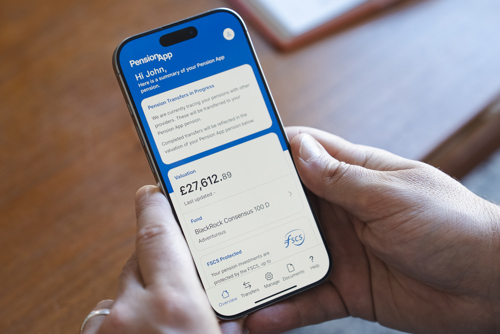
Step 6: View your pension overview.
Once your account is set up, you’ll be able to log in and view your pension overview. This section displays your combined pension value and allows you to follow the progress of any tracing and transfer activity.
You can also access other features of your Pension App account, such as adding money to your pension or withdrawing (subject to rules).
With pensions, your capital is at risk.